Firestick and Android TV Box FAQ: Installing Downloader in 2026
Stuck on setup before you even get to Downloader? That happens a lot with first-time Firestick and Android TV box users.
The fix is simple, start in the right order. Set up the device, finish updates, then install Downloader the safe way. One 2026 catch matters most, some newer Fire TV models with Vega OS don’t support sideloading at all.
Start with the basics so your device works the first time
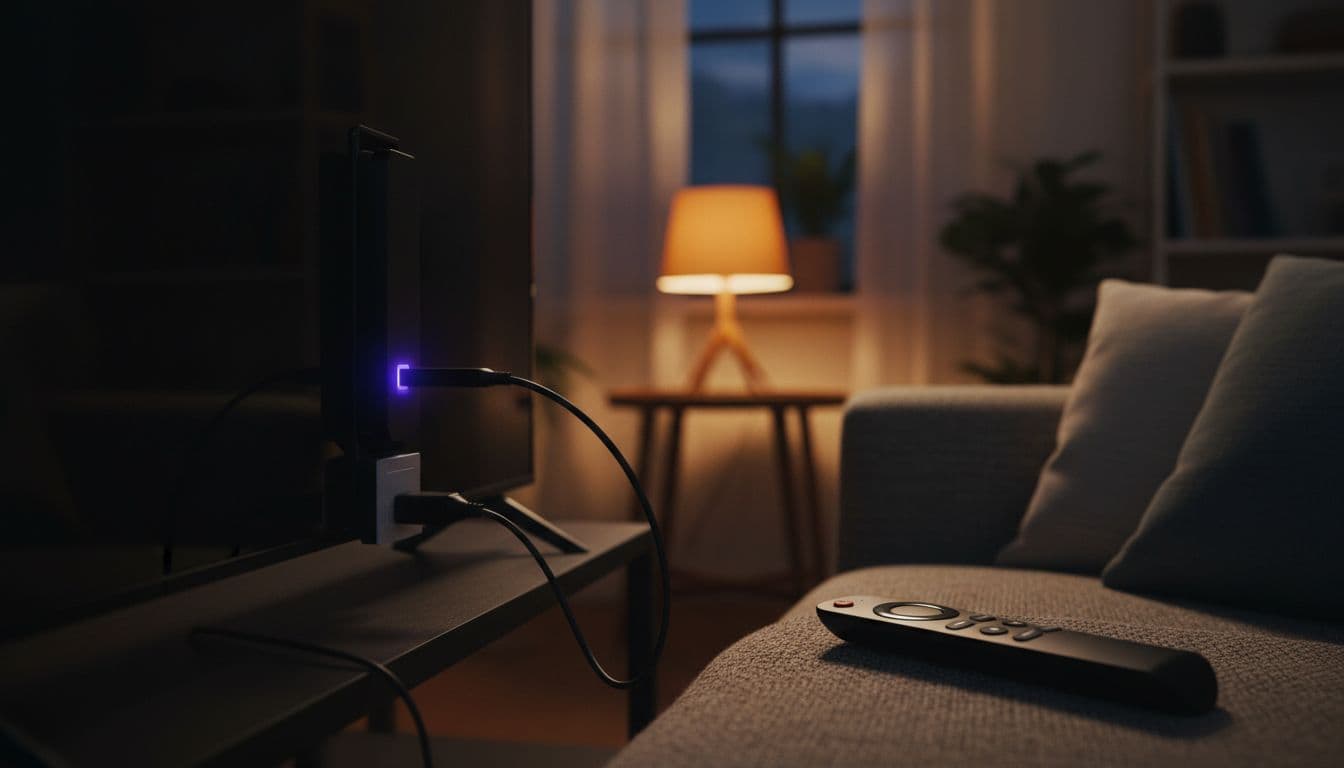
Plug your Firestick into an HDMI port, connect the power cable, switch the TV to that input, then pair the remote. After that, choose your language, connect to Wi-Fi, sign in with your Amazon account, and let the device update before adding apps. Android TV boxes start in much the same way, although menus and app stores can look different.
What you need before you plug in your Firestick or Android TV box
Have a TV with HDMI, a free wall outlet, your Wi-Fi password, remote batteries, and your account login ready. Also, use the wall power adapter, not the TV’s USB port, because weak power can cause boot loops, random restarts, or pairing issues. A stable internet connection helps from the first screen onward.
The first settings to finish before you install any app
Updates matter because older software can hide features, break Appstore searches, or slow the device down. Open Settings and check for system updates before you install streaming apps. That one step saves time later.
How to install Downloader on Firestick in 2026
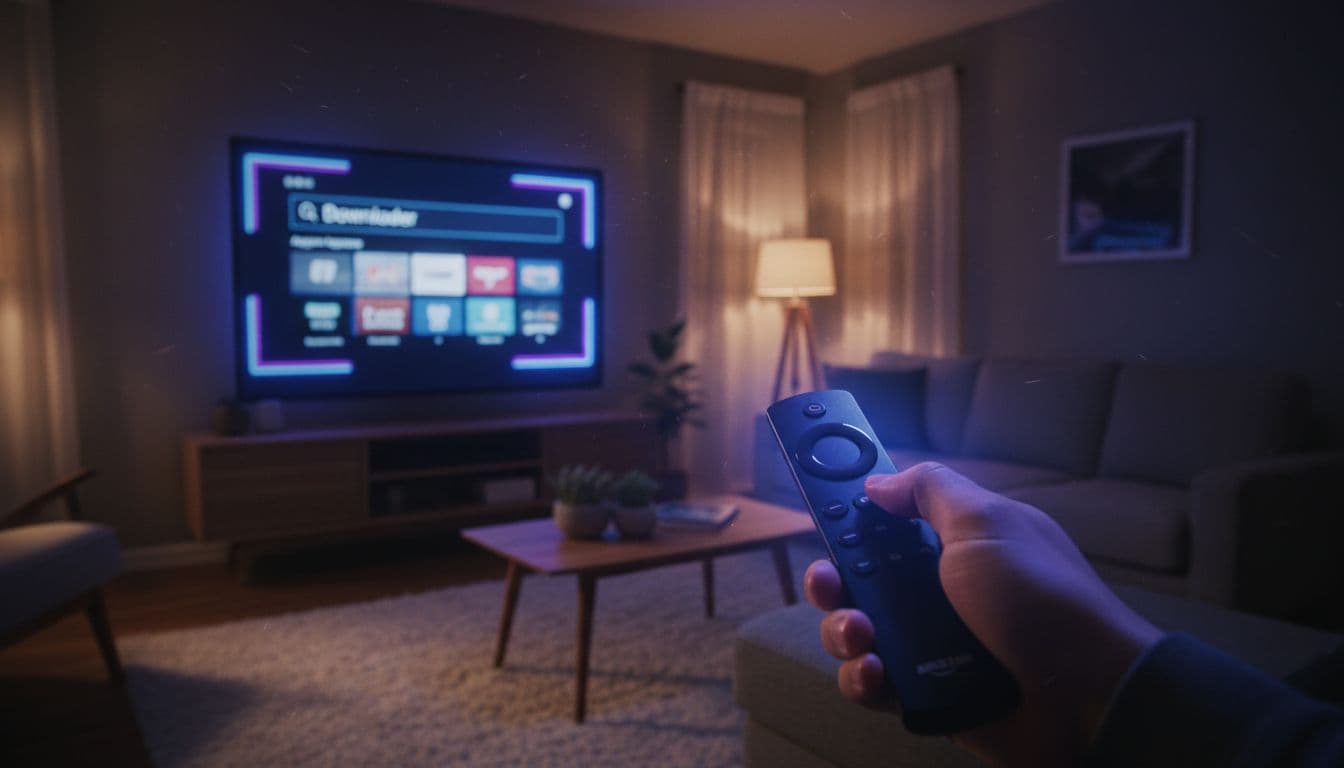
On supported Fire OS devices, look for Downloader by AFTVnews in the Amazon Appstore first. From the home screen, open Find, use Search, type Downloader, select the official app, and install it. If you want current background on listing changes, see this AFTVnews update on Downloader’s Appstore status.
Next, open Settings, then My Fire TV, then About. Click your device name seven times to unlock Developer Options. Go back, open Developer Options, and allow Install unknown apps for Downloader. Older models may show Apps from Unknown Sources instead.
How to tell if your Fire TV device supports Downloader and sideloading
Here is the key 2026 warning: some newer Fire TV devices, including certain 4K Select models running Vega OS, may not offer Downloader or sideloading at all.
A reset won’t add sideloading back if the device runs Vega OS.
If Downloader is a must-have, check support before you buy.
Common setup problems and quick fixes that save time
Wi-Fi not connecting? Restart the router and re-enter the password slowly. Remote not pairing? Hold Home for about 10 seconds, then move closer to the device. Missing Developer Options? Open About first and tap the device name seven times. Slow performance after setup? Finish updates, restart, and remove unused apps.
Why Downloader is not working, or not showing up, on some devices
Sometimes it’s a setup miss. Search the Appstore again and confirm the app name matches Downloader by AFTVnews. Then restart the Firestick and try once more. In other cases, it’s a device limit. This 2026 Firestick sideloading guide explains why unsupported models won’t gain sideloading through settings changes alone.
Firestick vs Android TV box, which one makes setup easier
Firestick is easier for most beginners because the setup flow is tighter and the hardware is more portable. Android TV boxes usually offer more ports, more storage, and more app freedom. If sideloading matters most, Android TV often gives you fewer roadblocks.
Finish setup first, update the software, then install Downloader from the official store if your device supports it. That order prevents most headaches.
Before you buy, check the exact model. Compatibility matters more in 2026 than ever.
